How to Save Dashcam Footage After an Accident Before It Overwrites
A saved-looking clip is not a backup. Learn how to protect the original recording, retain surrounding footage and send a usable copy without replacing your source files.
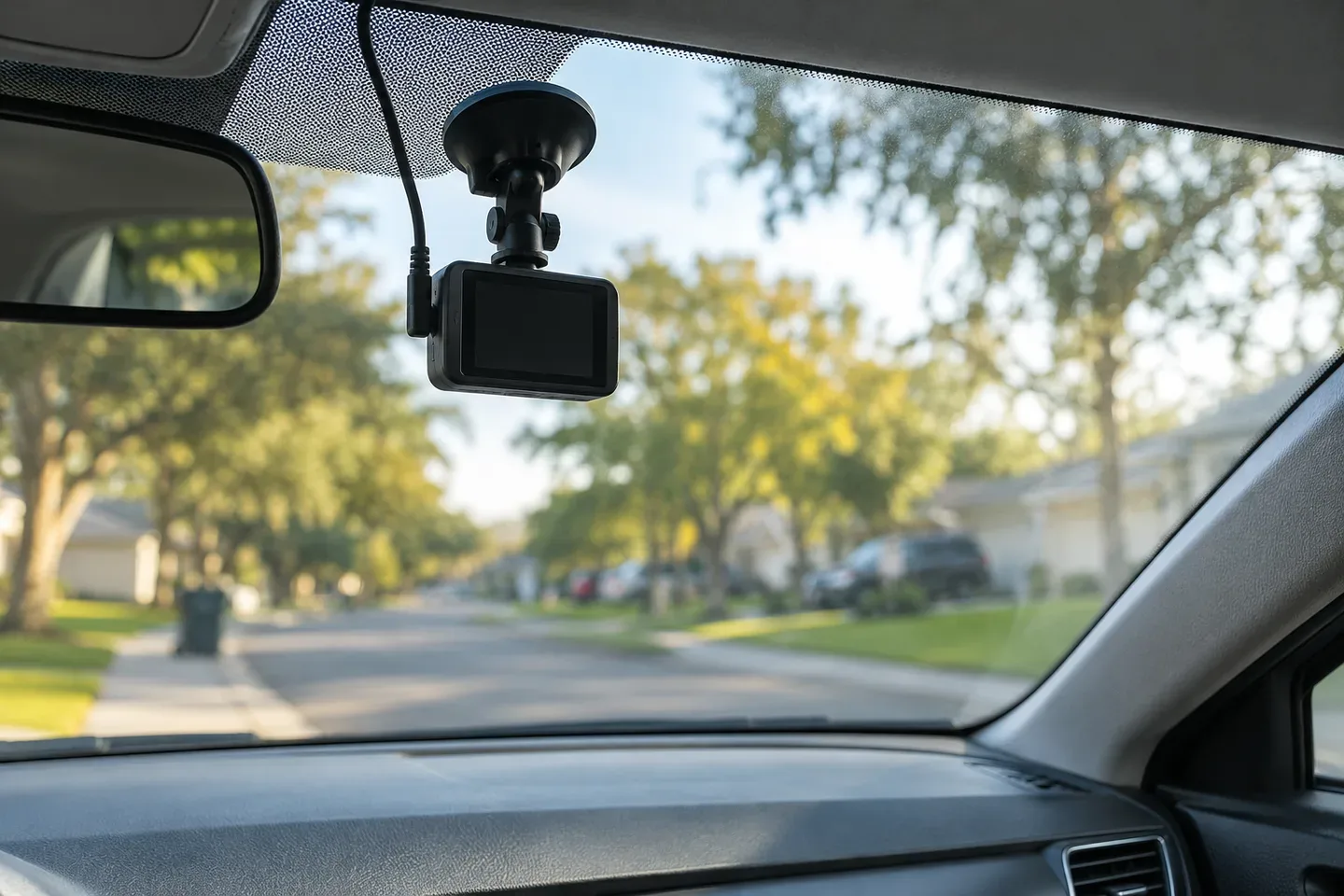
After an accident, protect the dashcam’s original files before continued recording can overwrite them. Once you are safe, use the saving instructions for your exact camera, export the relevant recordings without editing them, and verify a separate backup. Keep footage from before and after the impact, including other camera channels. Send a copy through the insurer’s requested channel while retaining your source files.
Do not reach for the camera while driving, return to an unsafe vehicle or delay emergency assistance. This guide concerns preserving a recording you already have; it does not determine fault, establish recording legality or promise that a video will resolve a claim.
Why a dashcam clip can disappear
Many cameras reuse storage as they record. For example, Garmin’s recording instructions for its 46/56/66W models explain that the oldest unsaved videos are deleted when the card fills. Certain regional settings can delete unsaved recordings even sooner. The manual provides a separate saving function to protect footage.
Check your own model’s manual rather than assuming a collision automatically saved everything. A protected event clip, an app preview and a downloaded original are different things. Confirm which files actually exist before relying on any one of them.
First, protect the recording using your camera’s instructions
When it is safe to do so, identify the make and model and follow its procedure for saving an event. Avoid formatting the card, resetting the camera or using a storage-cleanup feature. If you cannot confirm what has been saved, stop experimenting and contact the manufacturer or a qualified professional.
Before removing a memory card, follow the device’s shutdown and removal instructions. Do not assume disconnecting power has the same effect on every camera. Keep the original storage medium secure, and ask your attorney about preservation requirements if a dispute or serious injury is involved.
Export the source files, not just a screen recording
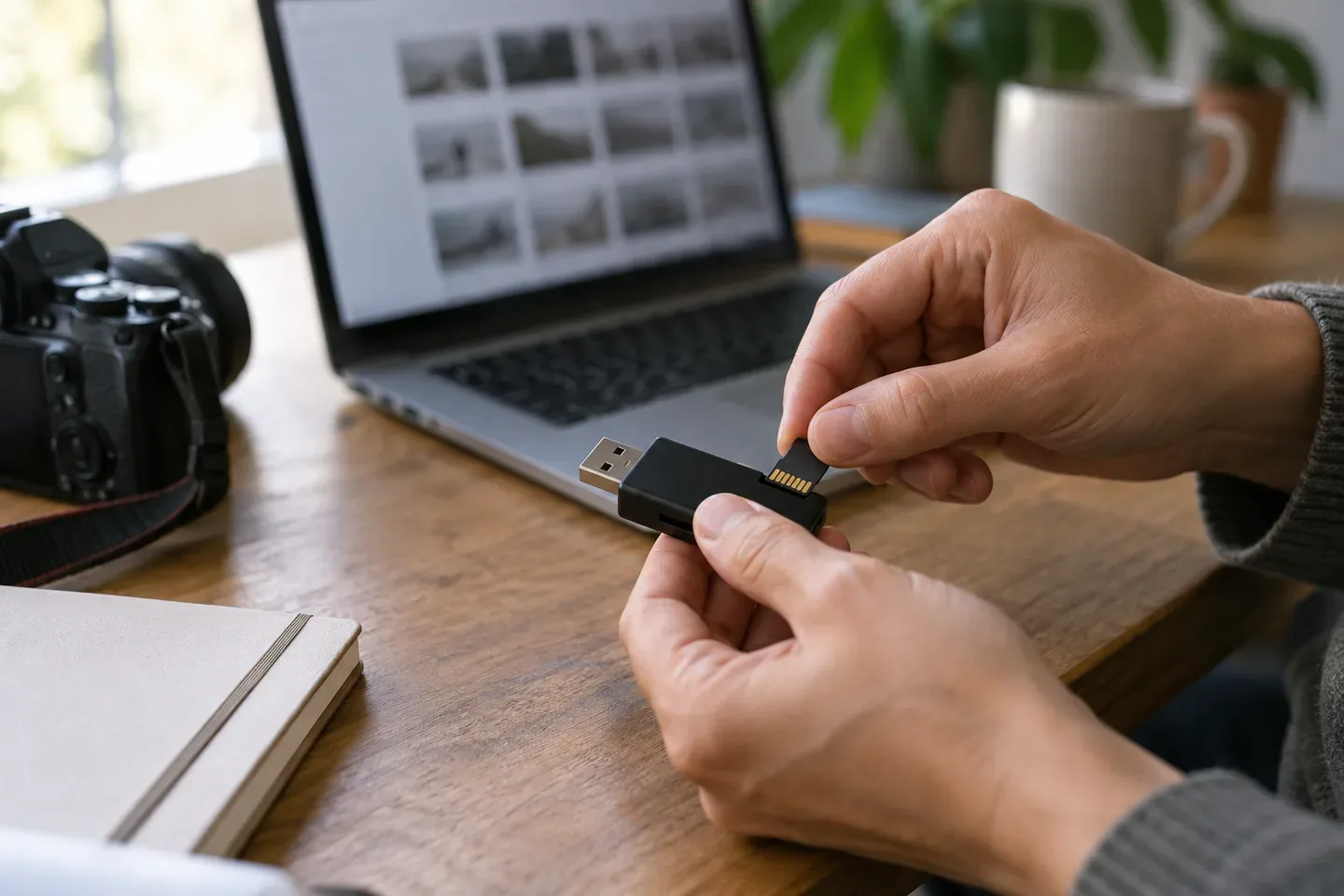
A phone video of a laptop playing the collision is a useful fallback for showing what you saw, but it should not replace the camera’s source recording. Look for the manufacturer’s file-transfer instructions and copy the actual video files to a secure folder.
Garmin’s computer-viewing guidance describes separate folders for automatically saved events, manually saved files and unsaved footage on supported models. It also distinguishes higher-quality MP4 recordings from lower-quality GLV versions on certain devices. Your camera may use a different folder structure or file format.
Read import prompts carefully. Garmin’s older Dash Cam Player import guidance, for example, says a successful import removes the imported files from the camera or card. An “import” button is therefore not necessarily a simple copy operation. Check what your software will do before proceeding.
Keep the surrounding segments and camera channels
Review the neighboring files as well as the segment containing the impact. A recording boundary may split the approach and collision between two files. If your system records front, rear or interior views, locate the relevant channels instead of assuming the first preview contains everything.
Keep the files together in their original format. Make a separate note explaining what each contains. If you later make a shorter viewing copy, label it as an excerpt and retain the longer originals unchanged. Do not replace source audio or add an overlay to the only copy.
Verify the copy and a separate backup
Open the copied files and check that they play. Verify that the expected time period and camera views are present and that the files are more than empty placeholders. Compare the filenames and file sizes with the source when possible. Store an additional copy separately, using an account or drive you control.
Keep a short index with the camera model, original filenames, which direction each camera faced, approximate crash time and where the backup is stored. If the displayed clock appears wrong, note the apparent difference instead of altering the original recording. Distinguish a confirmed clock error from a guess.
Prepare a clear submission for the insurance adjuster
Tell the adjuster that video exists and ask which upload method, format and file-size limits apply. Confirm the recipient through a known contact. A message can identify the claim number, list the filenames and explain which file contains the event, without arguing that the recording proves more than it shows.
Ask for confirmation that the upload was received and can be opened. Keep the submission receipt and the exact files sent. If an upload system requires a converted file, retain the original and label the converted version. Seek legal advice about disputed requests, privacy issues or obligations to provide recordings; do not delete unfavorable footage.
Use video alongside the rest of your claim file
A camera captures one viewpoint. Keep it alongside the scene photographs and evidence index, witness details and your factual notes. Our insurance conversation guide can help track the next request.
The Claim Value Now calculator offers an educational starting point for injury-claim questions. It cannot analyze a video or decide responsibility.
Sources checked October 17, 2026. Claim Value Now is not a law firm. This article provides general educational information, not legal advice, forensic certification or a promise of a claim outcome.
Claim Value is a marketing and intake service. Articles are for general educational purposes, do not provide legal or medical advice, and do not predict a case outcome. Laws and circumstances vary.
Wondering where your claim starts?
Our free calculator helps you explore an educational range based on your answers.
Start my estimate